

WETAIR · WI-FI SETUP
Your WetAir in Tuya Smart
Control your dehumidifier or portable air conditioner from your phone. Find your exact model first: the time you need to hold the pairing button varies.
Checked:
The short answer
Connect your phone to your home 2.4 GHz Wi-Fi network, open Tuya Smart and activate pairing on the appliance. Hold TIMER for 5 seconds on WAD-B20L or 3 seconds on the other models listed in the cards below. Wait for the Wi-Fi indicator to flash, then add the appliance in the app. See the separate note below for WPAC-E07K.
How the connection fits together
-
Your phone
Tuya Smart and your account
-
Home Wi-Fi
A 2.4 GHz network with internet access
-
WetAir appliance
Wi-Fi indicator and pairing mode
During setup, your phone supplies the home network details to the appliance. Once connected, internet access lets you send commands through Tuya Smart even when you are away from home.
Find your exact model
These commands apply with the appliance switched on. Hold TIMER until the Wi-Fi indicator flashes; do not hold it longer than specified for your model.
-
WAD-B25L
Hold TIMER3 sec
PDF manual — WAD-B25L -
WAD-B20L
Hold TIMER5 sec
PDF manual — WAD-B20L -
WAD-F12L
Hold TIMER3 sec
PDF manual — WAD-F12L -
WAD-A10L
Hold TIMER3 sec
PDF manual — WAD-A10L -
WPAC-H10K
Hold TIMER3 sec
PDF manual — WPAC-H10K -
WPAC-M09K
Hold TIMER3 sec
PDF manual — WPAC-M09K -
WPAC-M07K
Hold TIMER3 sec
PDF manual — WPAC-M07K -
WPAC-H12KB
Hold TIMER3 sec
PDF manual — WPAC-H12KB
Connect step by step
Prepare the appliance and network
Install the appliance as described in its manual and switch it on. For initial setup, keep your phone and appliance within a strong Wi-Fi signal. You need the name and password of a 2.4 GHz Wi-Fi network with internet access. Guest networks with device isolation or a browser sign-in page may prevent setup.
Open Tuya Smart
Install Tuya Smart from the App Store or Google Play and sign in to your account. Connect your phone to the intended 2.4 GHz network. During setup, grant local-network access or other device-discovery permissions if requested by the app. Permission names depend on your phone’s operating system.
Activate pairing mode
Read the exact model on the appliance’s rating label and match it to the cards above. With the appliance switched on, hold TIMER for the specified time and check that the Wi-Fi indicator flashes. If it does not, consult your model’s manual instead of trying arbitrary button combinations.
Add the right appliance type
Tap “+” or “Add Device”. If automatic discovery does not find your appliance, use manual selection: “Small Home Appliances → Dehumidifier” for a dehumidifier, or “Large Home Appliances → Air Conditioner” for an air conditioner. Select a Wi-Fi device. Category names may vary with the language and version of Tuya Smart.
Enter the password and connect
Check the 2.4 GHz network name, enter its password in Tuya Smart and confirm the indicator status. The pairing mode selected in the app must match the appliance’s flashing indicator. Keep power connected during setup. If pairing mode expires before the appliance is added, activate it again using the instructions for your model.
Name the appliance and test a command
After adding the appliance, give it a clear name, such as “Bedroom dehumidifier”. Try one available command while standing near it. Tuya Smart controls vary by model; not every appliance supports the modes or automations shown for another one. Away-from-home control requires internet access for both your phone and the home network.
Trouble connecting?
My router uses one name for 2.4 and 5 GHz. What should I do?
Check that the router’s 2.4 GHz band is enabled. If pairing fails, temporarily separate the network names following your router’s instructions, then connect your phone to 2.4 GHz. Keep the network password and security enabled.
The Wi-Fi indicator does not flash
Check that the appliance is switched on and verify the model and TIMER hold time: 5 seconds for WAD-B20L, 3 seconds for the other models in the cards. If the indicator does not respond, consult the manual or support rather than resetting settings at random.
The app offers EZ or AP mode
Tuya describes rapid flashing as EZ mode and slow flashing as AP mode. The app setting must match the indicator. Use AP only if supported by your appliance and the add-device screen; the app will ask you to connect the phone temporarily to the appliance’s hotspot. Check the model manual for any mode-switching command.
The network is found but setup fails
Check the case-sensitive password, 2.4 GHz band and internet access. Move the appliance closer to the router, check that the indicator is still flashing and try again. Read the app’s message to distinguish a password problem from a timeout.
It used to work, but now the appliance is offline
First check appliance power, your home internet connection and Wi-Fi signal at the installation point. Do not remove a working device entry during a brief network outage. A changed router or network configuration may require pairing again.
I changed my router, network name or password
Connect your phone to the new 2.4 GHz network and repeat setup using your model’s instructions. Before removing the old device entry, review your schedules and automations: you may need to configure them again after pairing.
Before your first remote start
- The appliance is installed in a permitted position and its air grilles are unobstructed.
- The dehumidifier’s tank is correctly fitted; if used, its drain hose is routed as instructed.
- The portable air conditioner’s exhaust duct and condensate drainage are correctly installed.
- An app command operates the appliance and no fault is shown on its control panel.
What to avoid
- Using a 5 GHz-only network or a reset sequence intended for a different model.
- Disabling router security or sharing your Wi-Fi password with third parties to complete setup.
Models to compare
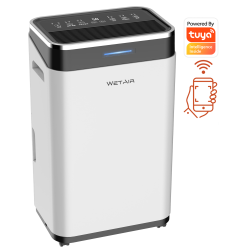
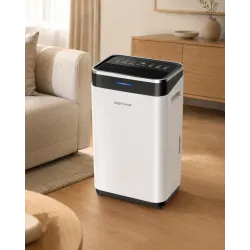
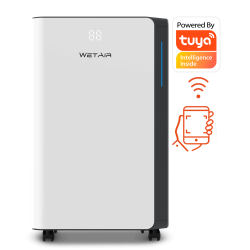
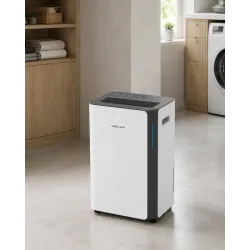
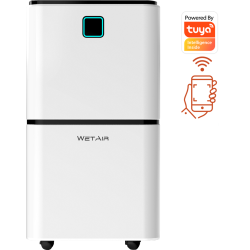
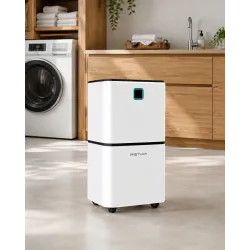
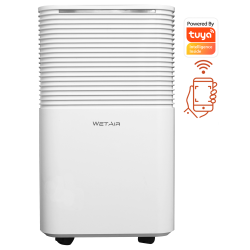
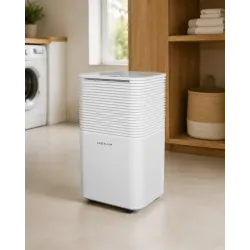
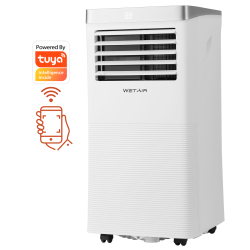
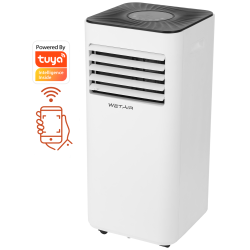
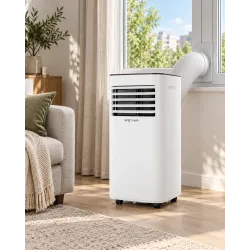
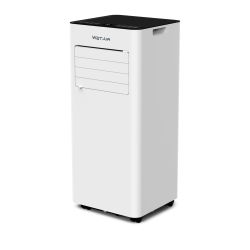
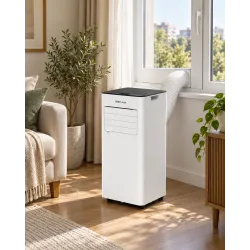
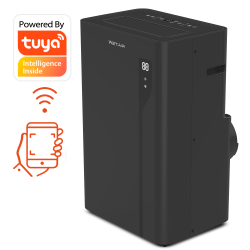
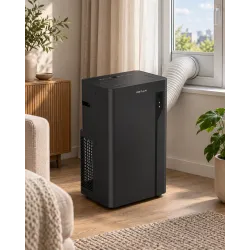
WetAir manuals and support
Check the exact model requirements
Unable to connect? Tell support the exact model, Wi-Fi indicator status and error message in Tuya Smart. If needed, include a screenshot with personal information removed. Do not send your home Wi-Fi password.
Sources behind these instructions
TIMER commands were checked against WetAir manuals, linked beside each model. Network and pairing-mode advice follows Tuya support. App screens may change. The diagram above explains the setup rather than reproducing an app screen.
Frequently asked questions
Can I use the appliance without Wi-Fi?
Yes. Basic operation from the appliance’s control panel remains available. It is remote control through Tuya Smart that requires a connection.
Why is a feature shown for another model missing on mine?
Wi-Fi does not add hardware capabilities. Tuya Smart displays the functions supported by the particular model and its firmware.
Do all WetAir dehumidifiers and air conditioners pair in the same way?
No. Check Wi-Fi support and the exact model designation. Even in this list, TIMER hold times differ. The published WPAC-E07K manual does not provide the command to start pairing.